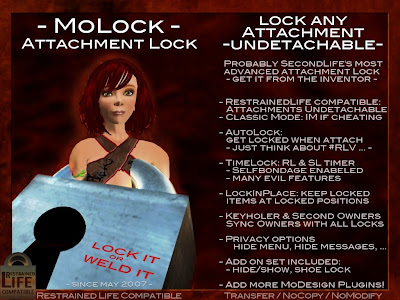
MoLock is an attachment lock. It is used to lock any prim to your sub (devices, shoes, jewellery...).
MoLock is the core for most wearable MoDesign products.
MoLock will take care about who is able to control aditional features of the wearables.
RestrainedLife
When used with the RestrainedLife viewer, locked items become undetachable. If you don't use the RestrainedLife viewer, please set the Script to "Classic" mode (see section about the settings meu in this document). For more information about RestrainedLife, please follow this link about RestrainedLife.
The MoLock Menu

- the attachment's name and who owns it
- the viewer used (Classic or RestrainedLife)
- if there is a Dominant set (and the name)
- the Keyholder
- the wearer of the item
- weather the lock is locked or not (and if locked RLv-secure)
- some statistics
If you don't get this menu but an other one, press either Plugins->MoLock or MoLock to get the MoLock menu. This happens usually when the attachment is locked.
Not all of the following options are part of all MoLock versions
Take Key
To gain Control, take the key with "Take Key".
Owning the Key gives you the following options:
- Lock the lock
- leave the Key
- give the Key to someone else
- set Time-Lock settings
- change the Settings
In addition, if you are not the wearer, the wearer can submit to you and make you the Dominant
Leave Key
Use this to give the Key back to the lock. Anybody will be able to take it.
Give Key
Use this feature to give the Key to someone else. The recipient is not needed to be nearby or online. Follow the instructions given by the menu.
Becoming Dominant / Owner
You can either be self owned or owned by someone else.
- To be owned by an owner, your future Owner needs to be Keyholder.
Just press Submit to submit to your owner. The owner is named Dominant. - To be self owned, open the MoLock menu and press Self Owned.
This is only possible, if you are not already owned and no one owns the Key.
The Dominant gets the option to add Second Owners:
- press SecOwners
- follow the instructions given by the menu this may take some seconds
You even can add Second Owners while they are not near or offline.
To remove a Second Owner, just klick the button with its name.
Second Owners have the same privileges as the Dominant or a Keyholder, but they cannot add more Second Owners.
You can copy the SecondOwers of all MoLock equipped items by activating the SyncOwners Mode.
Sync Owners
This is an advanced feature. If you use more items that lock with MoLock, you can sync the owner settings.
- Only items owned by the same Dominant are synced.
- If the Lock has no Dominant set, it will also copy the Dominant from an other lock, if possible.
- This makes set up really easy if you buy a new MoDesign product:
- wear it + touch it + press SyncOwners -> all Owners are set up
- (make sure you wear a MoDesign item with the settings you want to copy)
- Once active, all locks with active Sync Owners mode will synchronize their owner settings automatically. When active, a (sync) label is displayed after the Dominants name.
Weld
Weld is used to remove the option to unlock the lock. Only the Dominant can trigger this option. The Dominant and the sub will get a warning they need to confirm.
Use this with care! Do not Weld it for fun!
Please keep in mind, that MoDesign Updates only work with unlocked - thus not welded - items.
Help
Gives you help about MoLock
Plugins
Opens the Plugins Menu. If there are more features installed in your item, you will find them in the Plugins Menu.
Timelock
With the time-lock feature, you get many options to run an RL or an SL timer or both to unlock the lock. This can also be used for self-bondage purpose. Timelock is optional and not included with all locks!
- RL Timer / SL Timer
Set the countdown times
- RL Timer: Timer does not stop while offline
- SL Timer: Timer does only count down while online - Refresh
Use this to refresh the display and show the times left - Mode
- Any timer unlocks: Unlock when one timer reaches zero
- Both timer needed: Unlock when all timers reach zero - Hide / Show
- Hide: The sub is not able to see the time(s) left
- Show: The sub is able to see the time(s) left - Manual / Automatic Unlock
- Automatic: The lock gets unlocked automatic when the time is up
- Manual: The sub needs to check the Timelock menu to unlock the lock after the time is up - Start
Use this to start Timers
- When the lock is unlocked, it will lock.
- When pushed by the sub, the timer will grap the key from the sub (Selfbondage-Mode!) - Stop
Use this to stop the timer - not unlock the lock! - Reset
Use this to reset the timer and release it

- RLV Mode
When RLV Mode is disabled, the item will not issue RLV commands. - Autolock
When on, the lock will lock the moment you attach the attachment - LockInPlace
When active (=default), it is no longer possible to edit the position of the locked attachment.
If you use the MoDesign Collar HUD, setting this to off will allow the sub to edit locked collar & cuffs - Messages
When set to Private, messages will not spam open chat - Menu Mode
When set to restricted, only owners and the wearer will get a menu on touch - Menu Distance
You can restrict touch sensivity to 5 meter
This does not affect MoRemote or Chat Commands - Access
When set to public, people don't need to be a keyholder to operate the item - Kidnapp
When set to on, the item will be prone to the MoDesign Kidnapp Cuffs - Reset
This is used to reset the Lock and Owner settings.
The button only is visible when the viewer does not support RLV (-> turn off RLV to use it)
More information: MoLock FAQ
Back: Tutorials

